
📚 Table of Contents
1. Overview
2. Pipeline Feature
3. Project Type Views
4. Project Details
5. Key Takeaways
Overview
Project Status is a critical component of the G&H Automation Client Portal. It gives a comprehensive overview of all projects, including their current status, whether they have been delivered, are under programming, or require technical review. By understanding the Project Status, clients can stay informed about the progress of their projects and plan accordingly.
The importance of Project Status in the G&H Automation Client Portal is worth noting that it provides clients with a clear picture of the status of their projects in real-time. This allows clients to stay on top of any changes or updates that may occur during the project, giving them greater control and insight into the development process.
Overall, the Project Status section is an essential tool for clients to effectively manage their projects in the G&H Automation Client Portal. By utilizing the various features available and staying informed about the status of their projects, clients can ensure that their projects are completed on time and to their satisfaction. There are different features you can utilize in the Project Status section and we will go through each of them one by one.
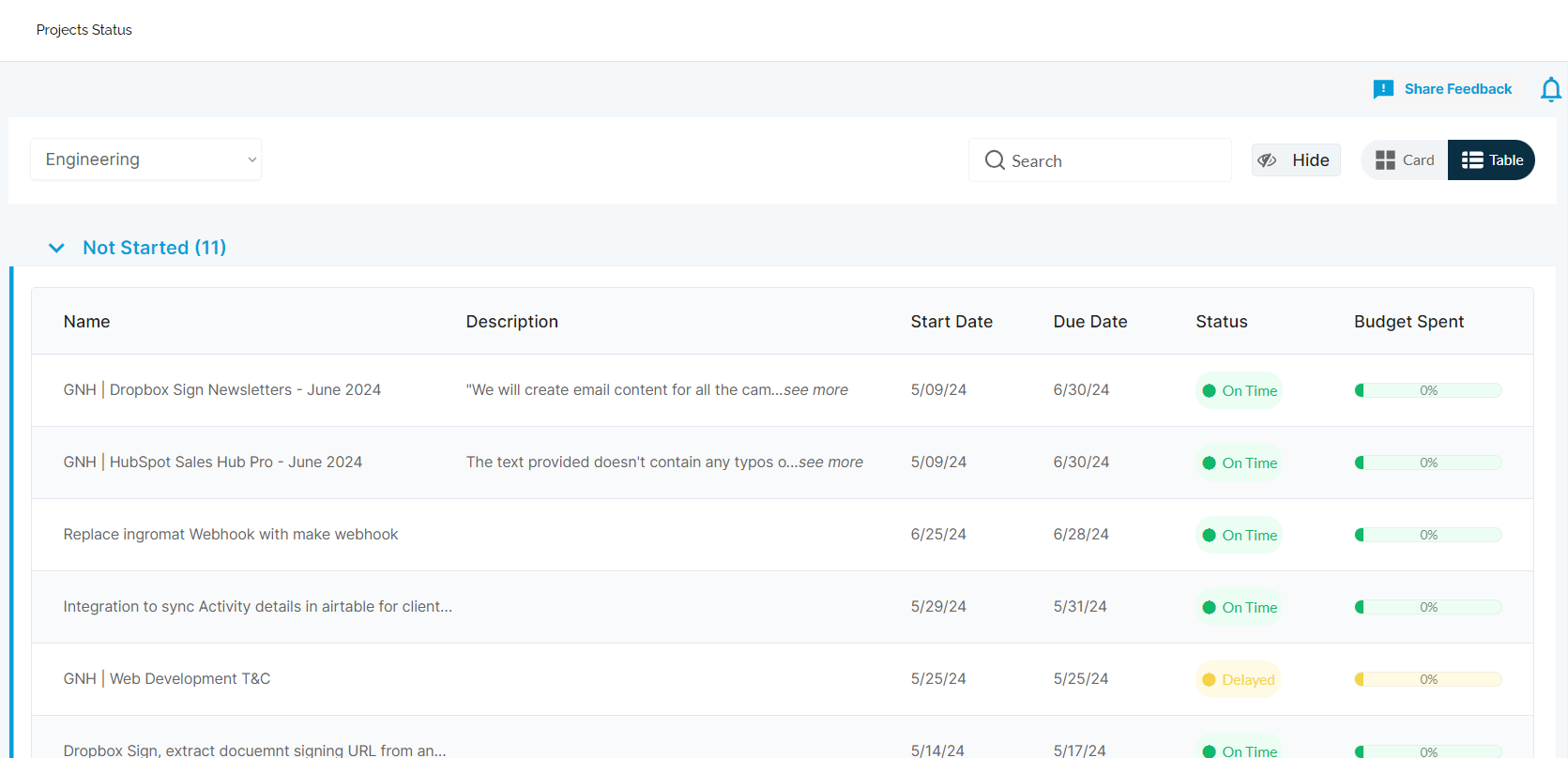
1. Pipeline
The Pipeline feature in the Project Status section allows clients to filter out projects and view information about their current status. This gives clients a quick and easy way to track the progress of their projects and stay up-to-date with any changes.
Additionally, clients can also view the projected completion date for each project in their Pipeline, helping them plan and allocate resources accordingly. Overall, the Pipeline feature is an essential tool for clients to manage their projects effectively in the G&H Automation Client Portal.
2. Project View Types
There are two types of views that you utilize in the Project Status section.
Table View
The Table View is a simple and easy-to-use feature that presents the project details in a table format. This feature clients with a quick summary of their projects, including the project name, status, delivery date, and technical review status. The Table View is useful for clients who want to get a quick overview of their projects and their current status.
How to Turn on Table View
To turn on the Table View, follow these steps below:
Step 01:
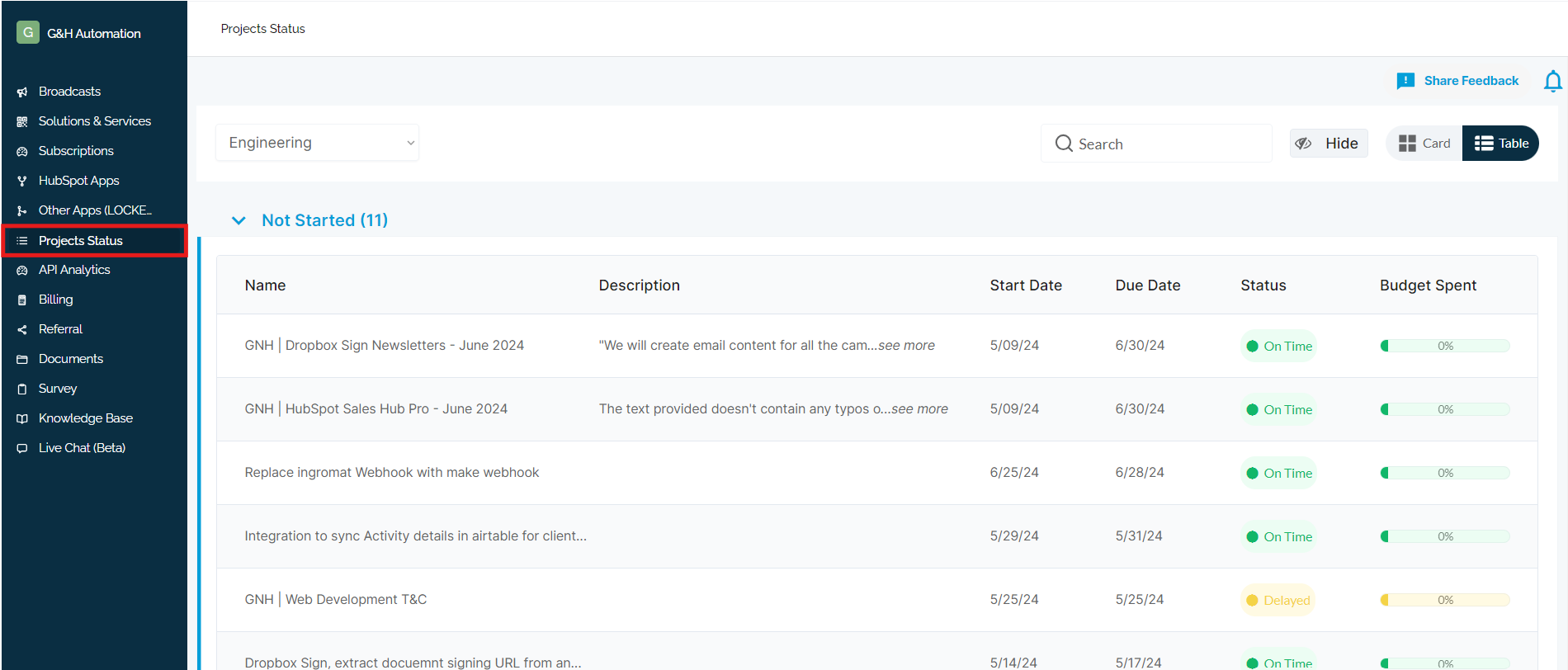
Go to Client Portal and click on "Project Status".
Step 02:
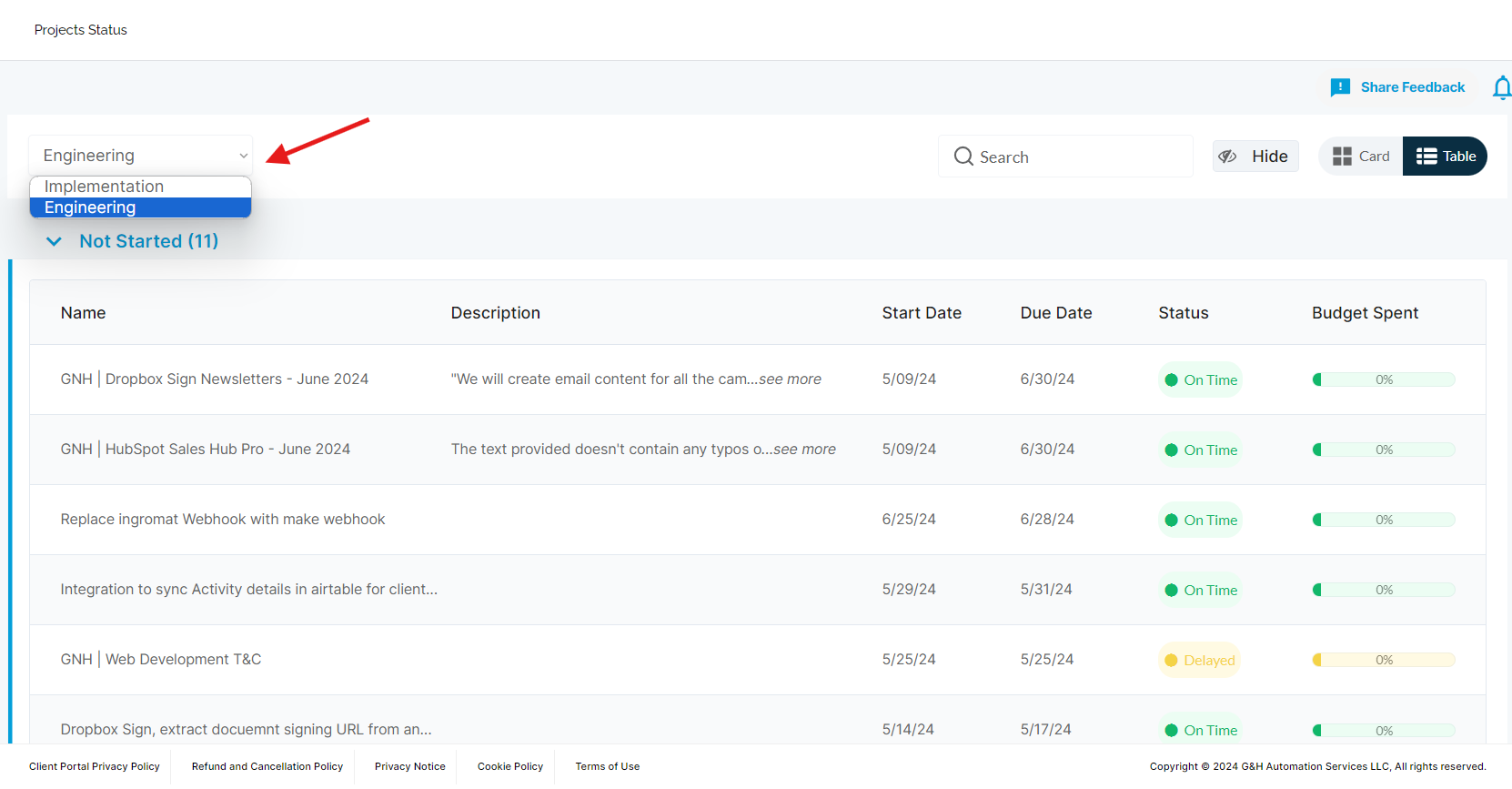
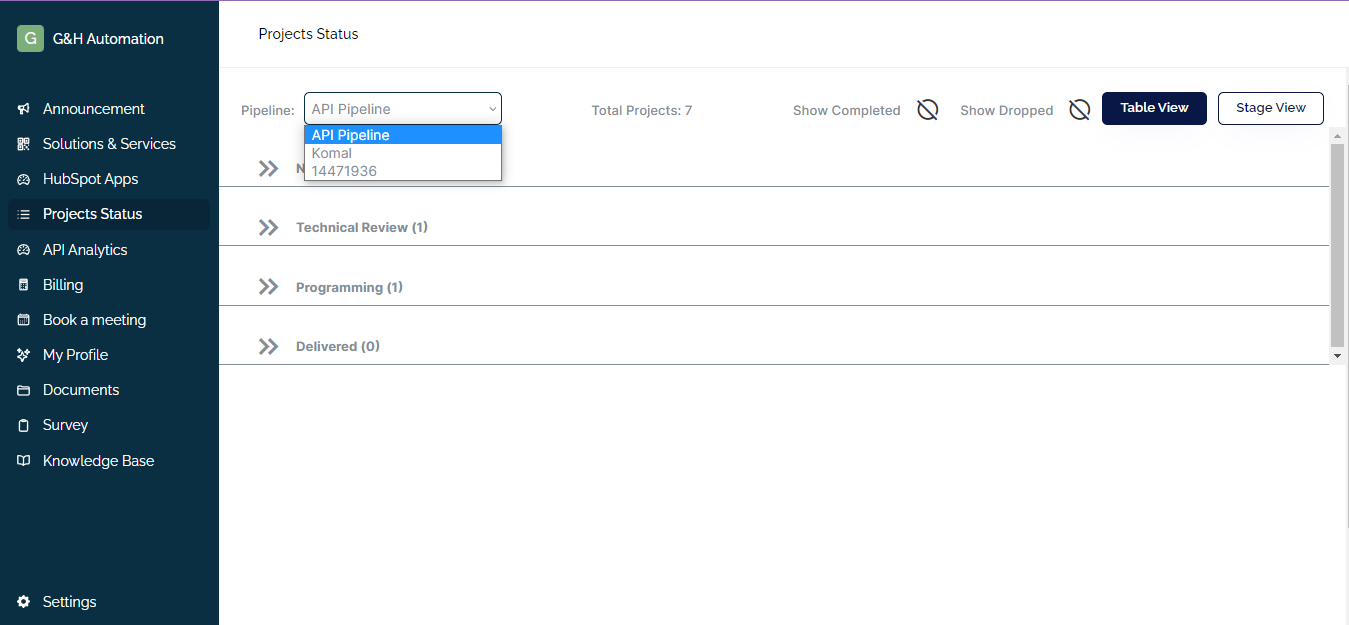
Click on the "Pipeline" and select the project from the dropdown menu.
Step 03:
Click on the "Table View" button. The Project Status details would be in the table format.
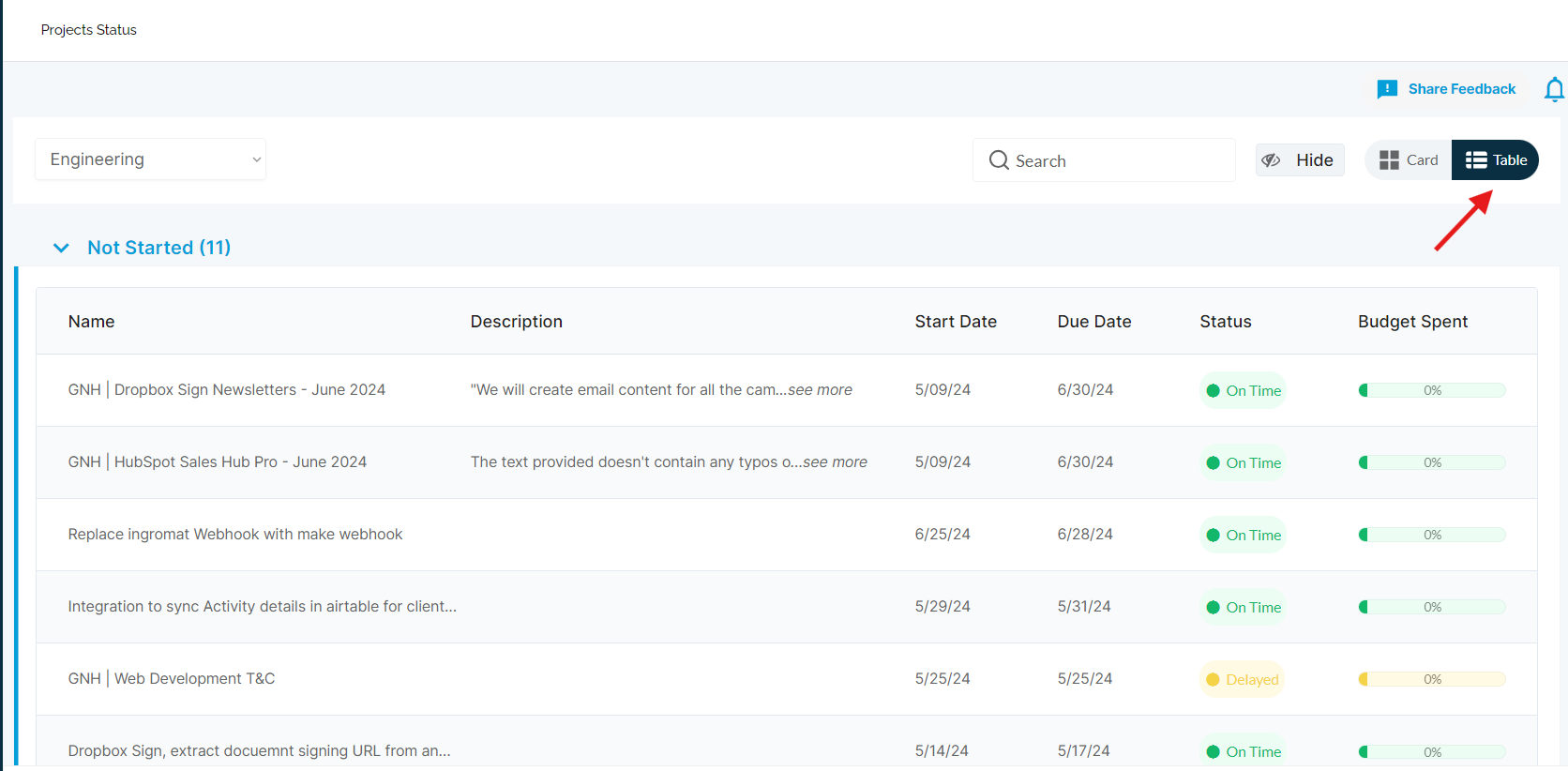
Note: If you don't want to see the completed project or dropped project in the current project status, hide the show completed icon otherwise keep it unhide.
Card View
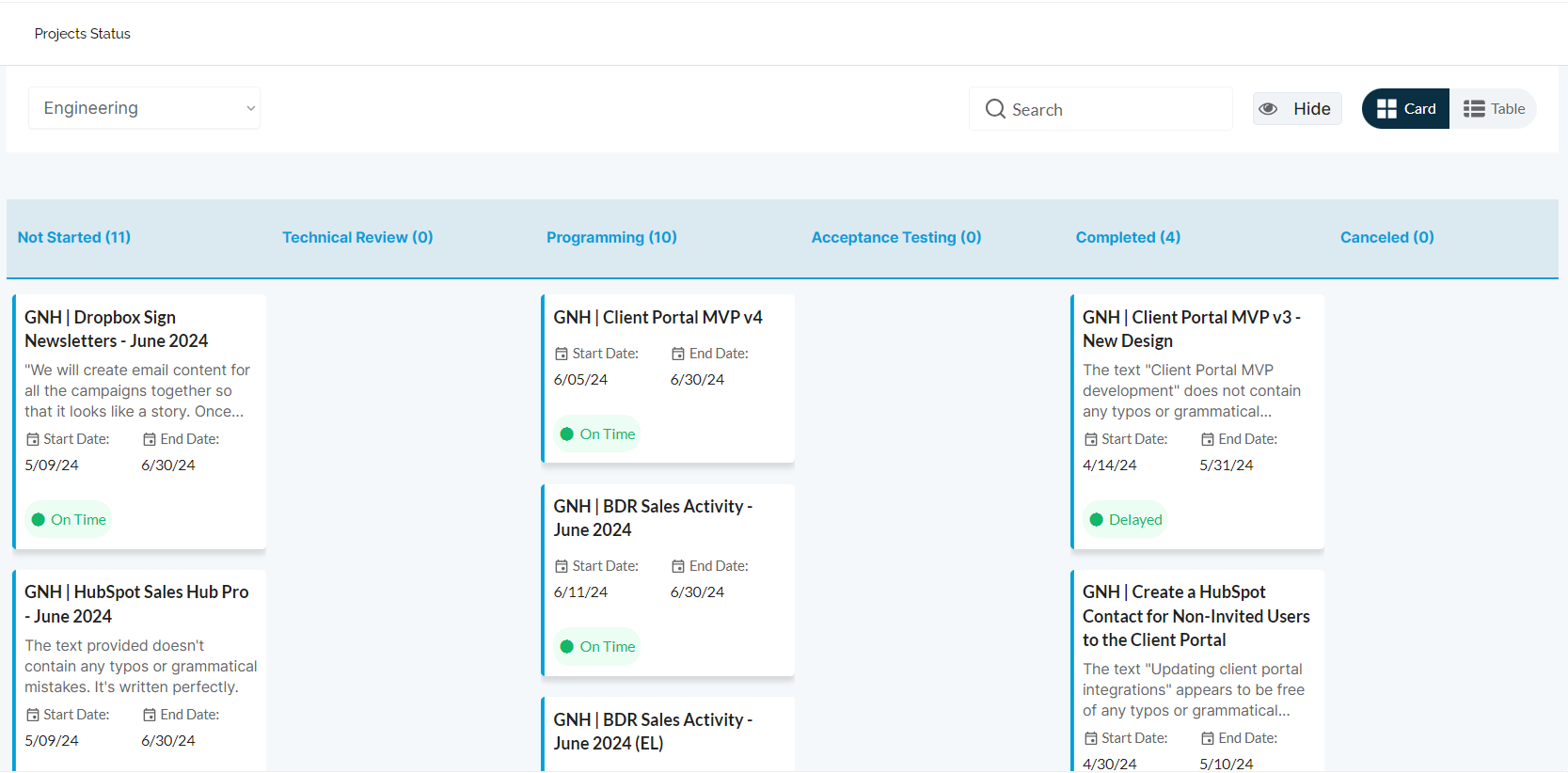
In Card View, you can see project details in the form of a block with different stages. In the card view, you can have a comprehensive overview of your project details. The project details will be presented to you in the form of a block, which allows you to see all the information at a glance from name to due date, and project status.
You can easily view the status of the project, the completed tasks, the upcoming milestones, and any pending actions that need your attention. The Stage view provides a visualization that can help you stay on top of your project and make informed decisions.
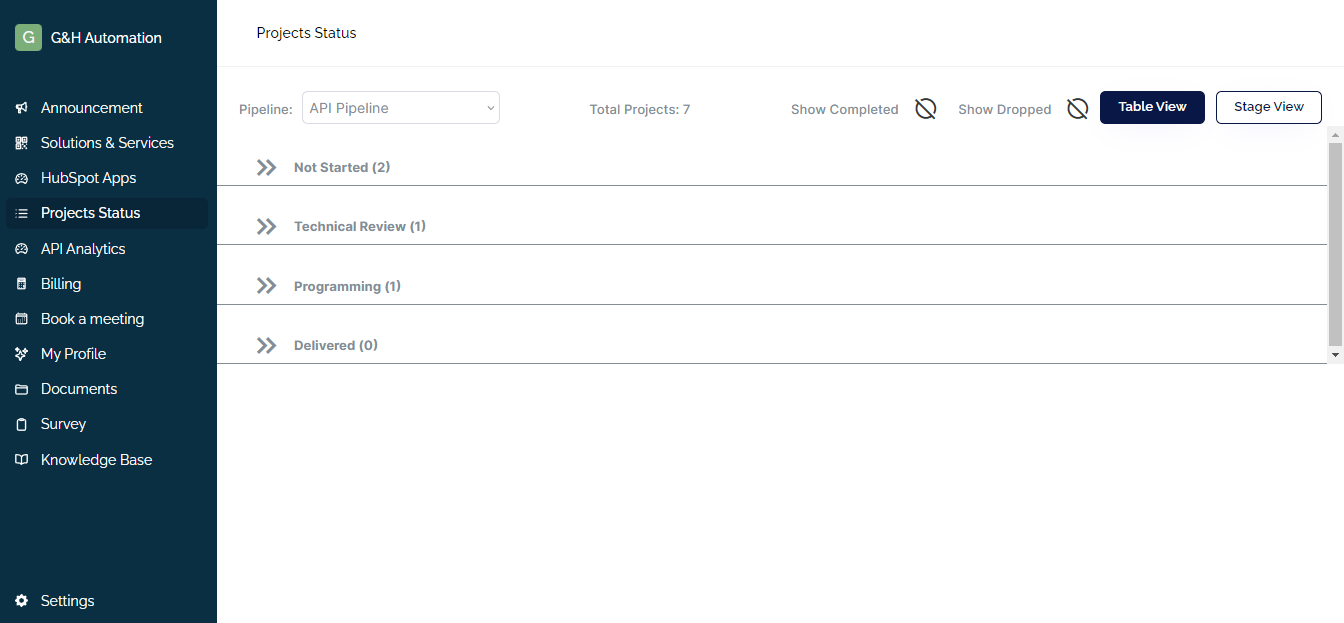
There are different stages associated with each project. For your understanding, the projects that haven't any actions yet refer to the "Not Started" stage, while others requiring review are in the "Technical Review" stage. Moreover, some projects you can see in the "Programming Stage" and projects that are handed over to clients are in the "Delivered Stage".
Note: To turn on the "Card View", follow the same steps that are mentioned above for "Table View".
3. Project Details
The project Details feature in the Project Status section is very crucial as it provides information about the project submitted by the client. It includes details such as project name, description, assigned team members, project start and end dates, and other relevant information.
This feature ensures that all project information is accurate and up-to-date, providing clients with a better understanding of their projects. Clients can view the project details by clicking on the relevant project in the Table View or Stage View.
How to see project details
To see the project details in Table View, you need to follow these steps:
Step 01:
Go to the Project Status section and click on the Pipeline menu to select your project.
Step 02:
You will see Projects under different categories.
Step 03:
Select the type view from the right top. In this case, we are going with the Table View.
Step 04:
Now, Click on the description of your desired project category. This will open project details.
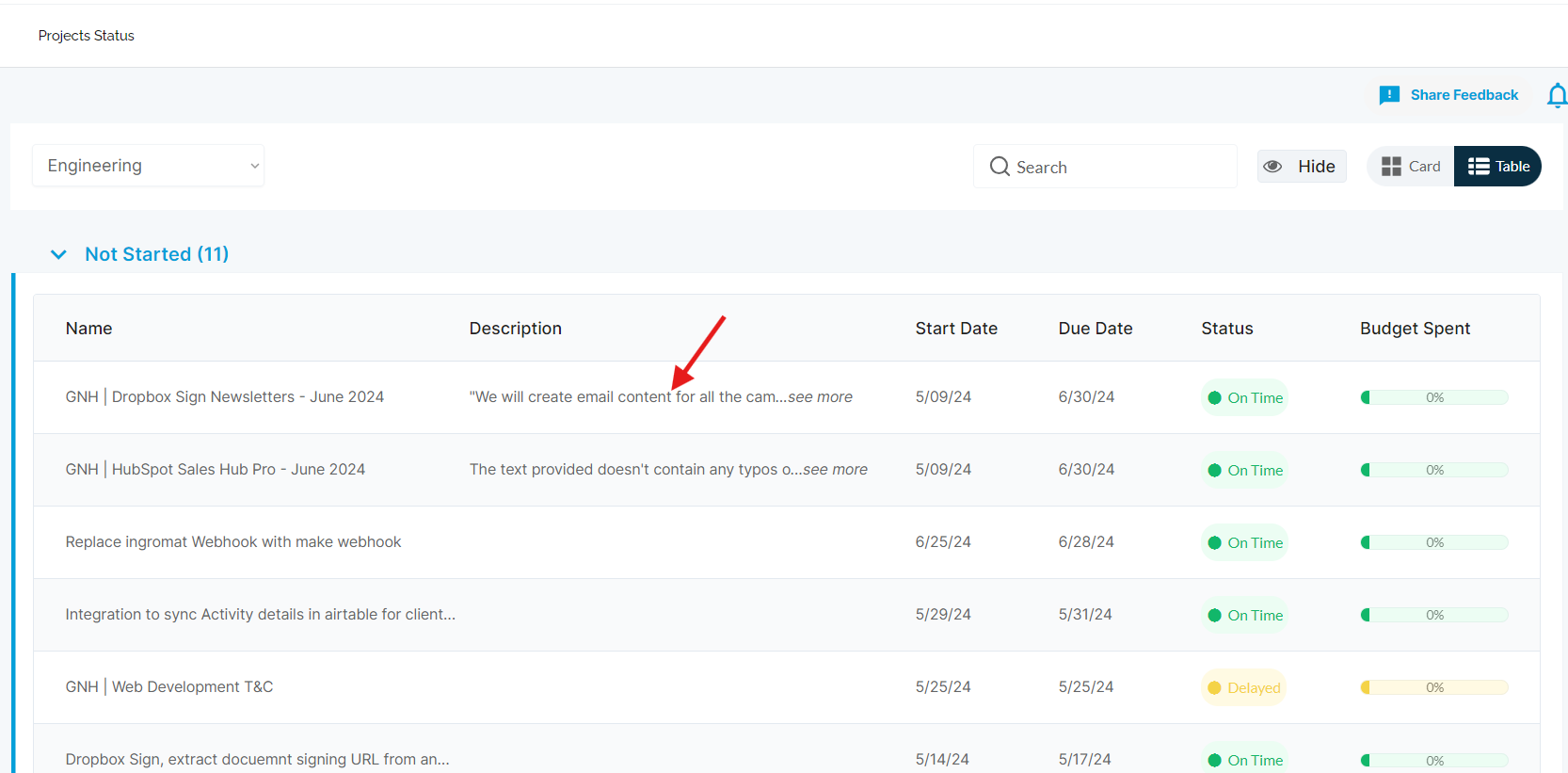
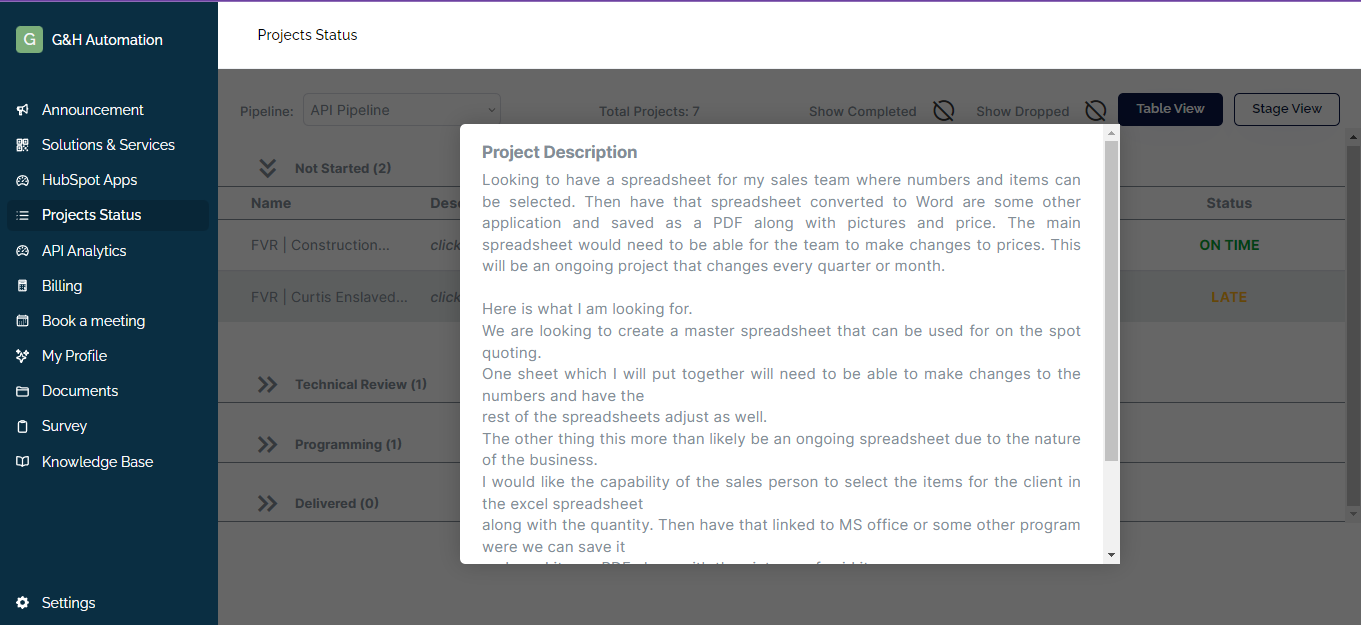
Note: To see more details about the project, click on see details. A detailed project description will open.
Tip:
The same steps go for card View, but everything would be in block form. A typical Stage View will be like this:
Key Takeaways
-
Project Status is a crucial feature in the G&H Automation Client Portal.
-
It offers a real-time overview of all your projects, including the current status, and delivery stage (delivered, under programming, or in review).
-
Clients can utilize various features within Project Status:
-
Pipeline: Filter and view projects by status with projected completion dates.
-
Project View Types:
-
Table View: See a project summary, including name, status, delivery date, and review status.
-
Card View: Provides a comprehensive overview of project details in a block format (stages, tasks, milestones, actions).
-
-
Project Details: Access information about each project, including name, description, assigned team, start/end dates, etc.
-
-
Understanding Project Status allows you to effectively manage projects, stay informed about progress, and plan accordingly.
💡Looking for Help?
Do you have further queries or require additional clarification? Feel free to reach out.