
📚 Table of Contents
1. Overview
2. How to Enable Two-factor Authentication
3. Key Takeaways
Overview
G&H Automation's client portal offers the option to enable two-factor authentication (TFA) to provide an extra layer of security for accessing your account. With TFA, you will need to verify your identity using a second factor, such as a code from an authentication app, in addition to your password. This helps ensure that only authorized individuals can access your account and sensitive information. Follow the steps below to enable your TFA.
How to Enable Two-factor Authentication
Step 01:
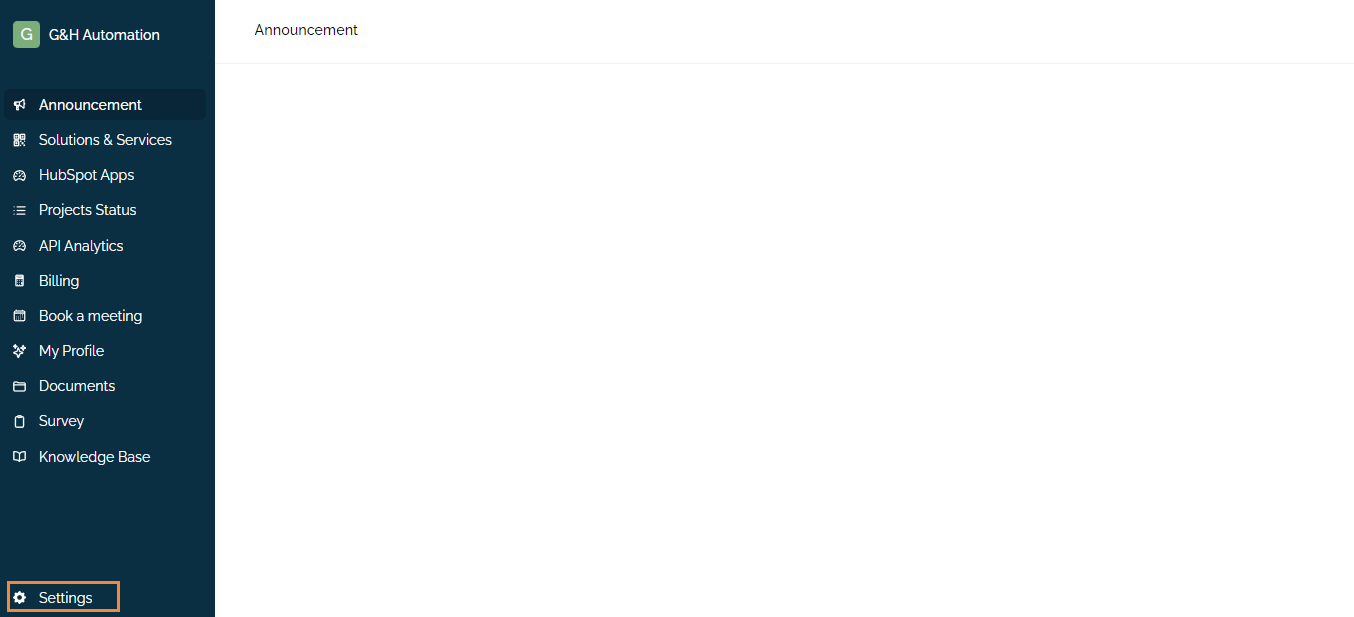
Log in to the Client Portal, and click "Settings" from the menu.
Step 02:
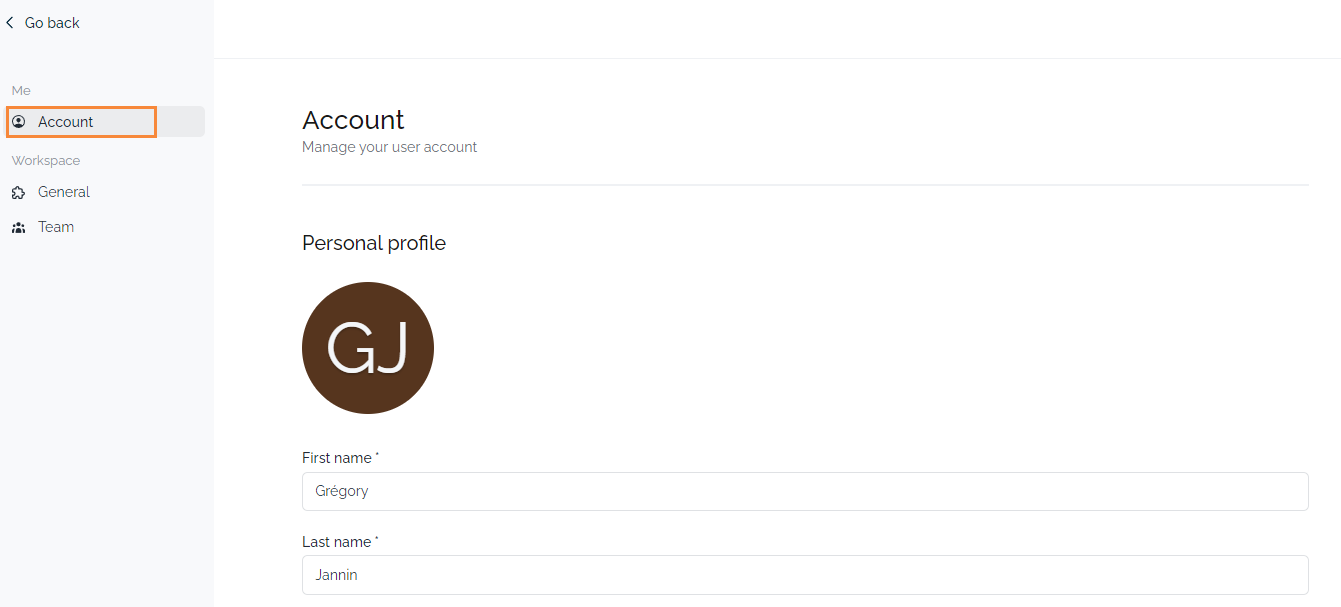
A new window will open and click on the "Account" tab.
Step 03:
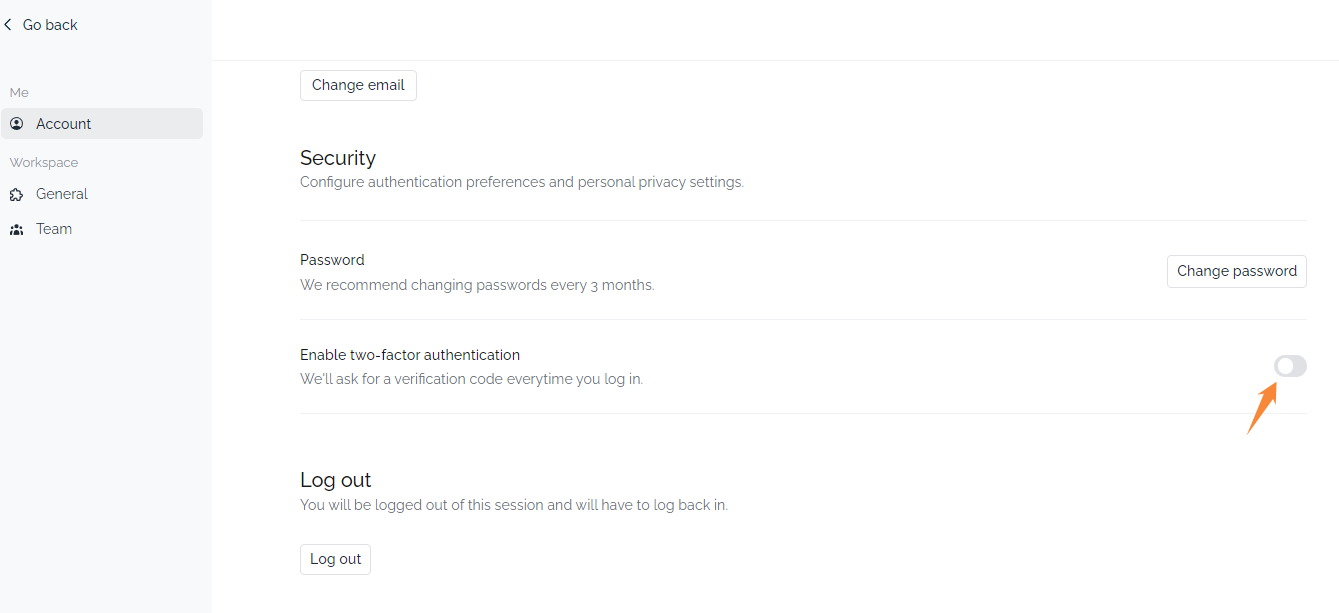
Scroll to the bottom and google the two-factor authentication.
Step 04:
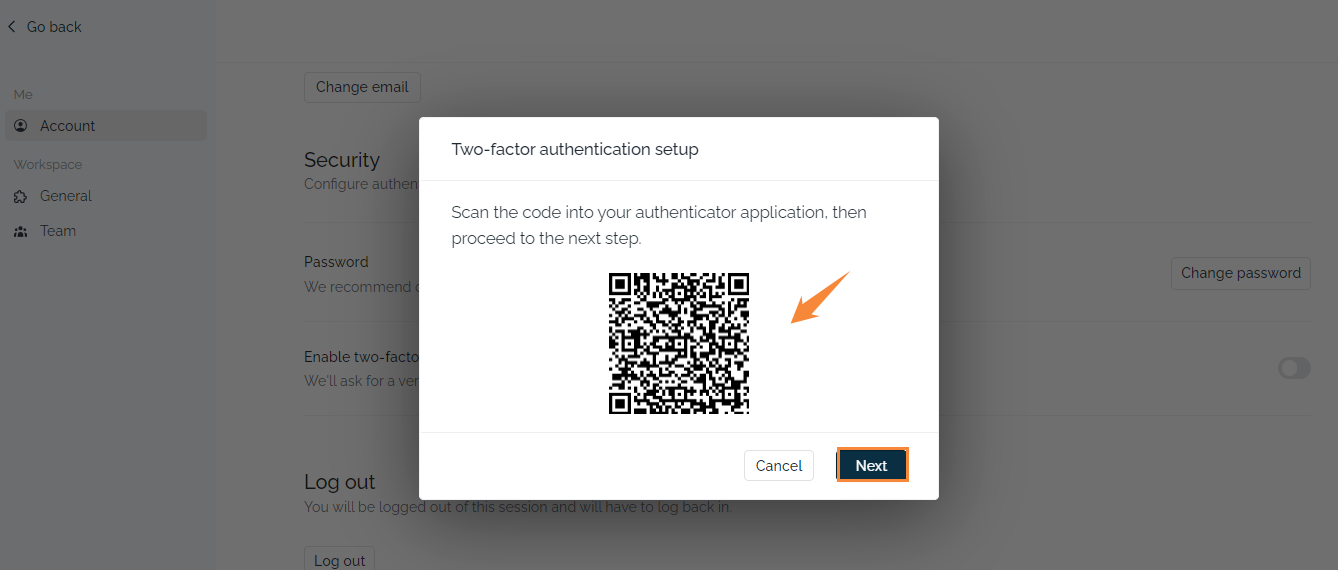
Scan the code into your authenticator application and click on "next".
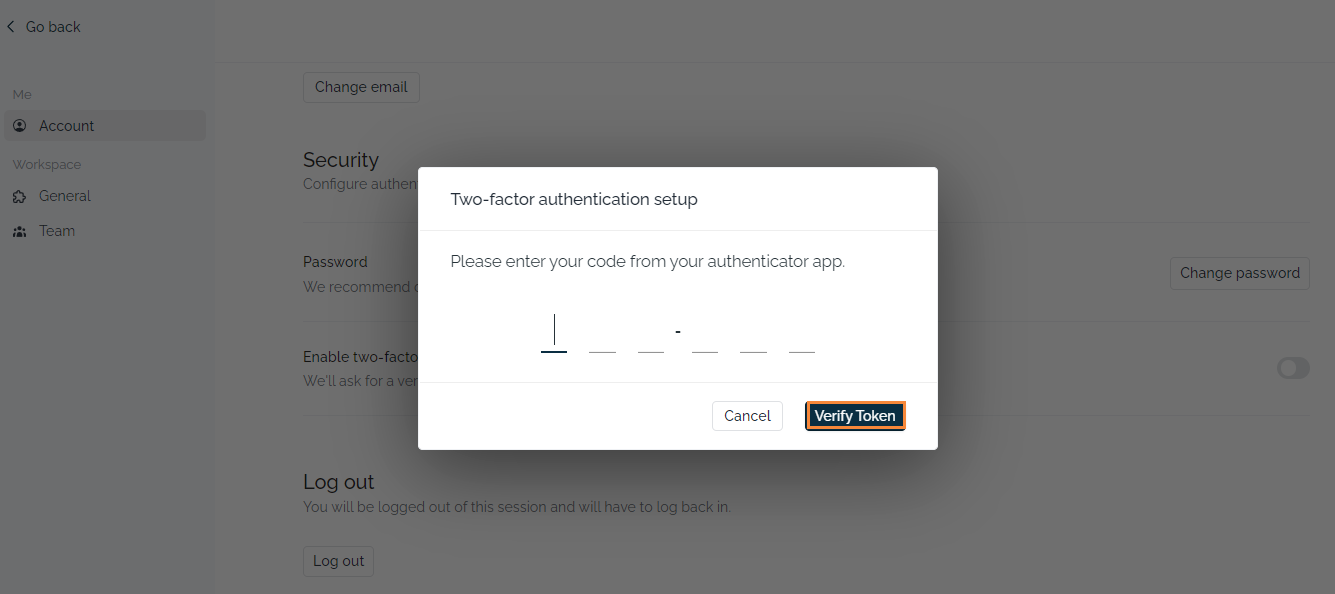
Step 05:
Enter your code from your authenticator app. Click on the "Verify Token" button. Congrats! you have enabled a TFA on the client portal.
Note:
You need to provide a verification code every time you log in.
Key Takeaways
- Enhanced Security: Enable Two-Factor Authentication (TFA) for an extra layer of protection for your account.
- Easy Setup: Follow simple steps to activate TFA in the client portal.
- Constant Verification: You'll need to provide a code from your authenticator app for every login.
- Safeguard Your Account: TFA significantly reduces the risk of unauthorized access.
💡Looking for Help?
Do you have further queries or require additional clarification? Feel free to reach out.