
📚Table of Contents
1. Overview
2. How to Book a Meeting
3. Key takeaways
Introduction
In this section, you can take control of your user profile and adjust your privacy settings to suit your preferences. In the Settings menu, you have access to a range of options that allow you to manage your general settings, such as your company information and branding. Additionally, you can manage your team to invite new members to the client portal and view their status as active or offline at any time. You can revoke their access to the client portal whenever needed. In the Settings menu, you can manage your general preferences and set up your company information.
Managing Your Account
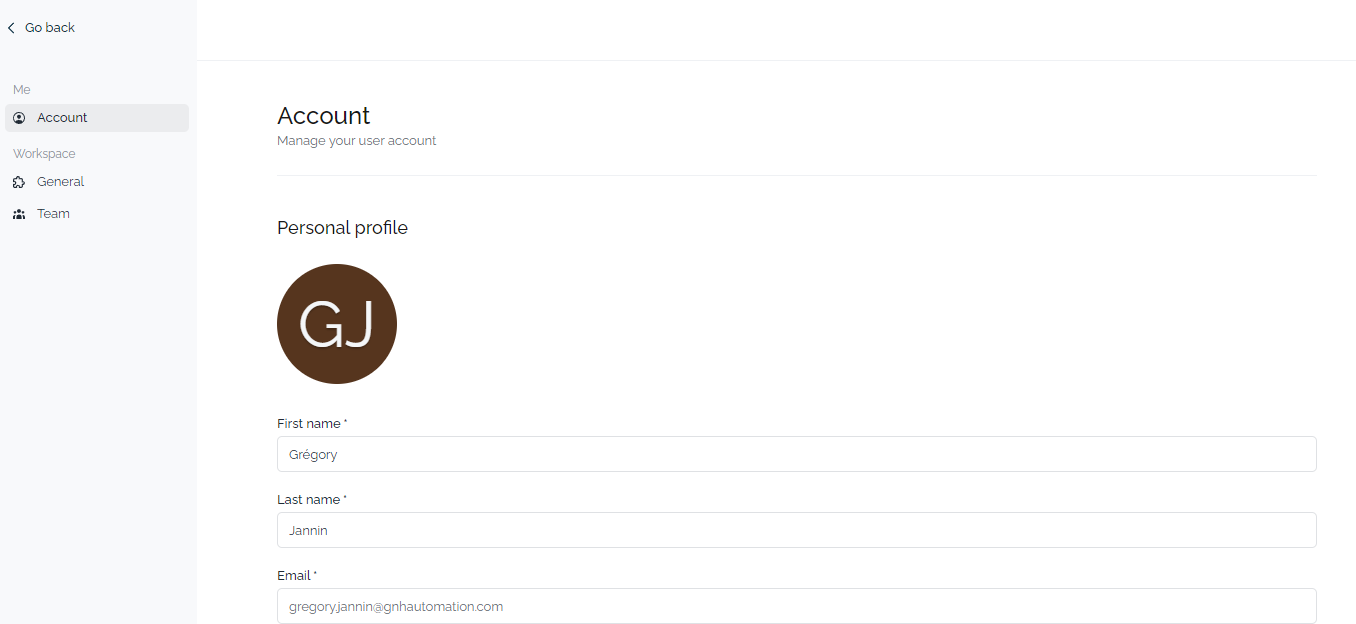
The G&H Automation Client Portal offers you a simple and hassle-free process to set up and manage your account settings. The client portal aims to provide you with the flexibility and control to manage your account settings in a way that suits your preferences and needs. There, you'll find two primary sections: the Personal profile and the Security section.
1. Personal profile
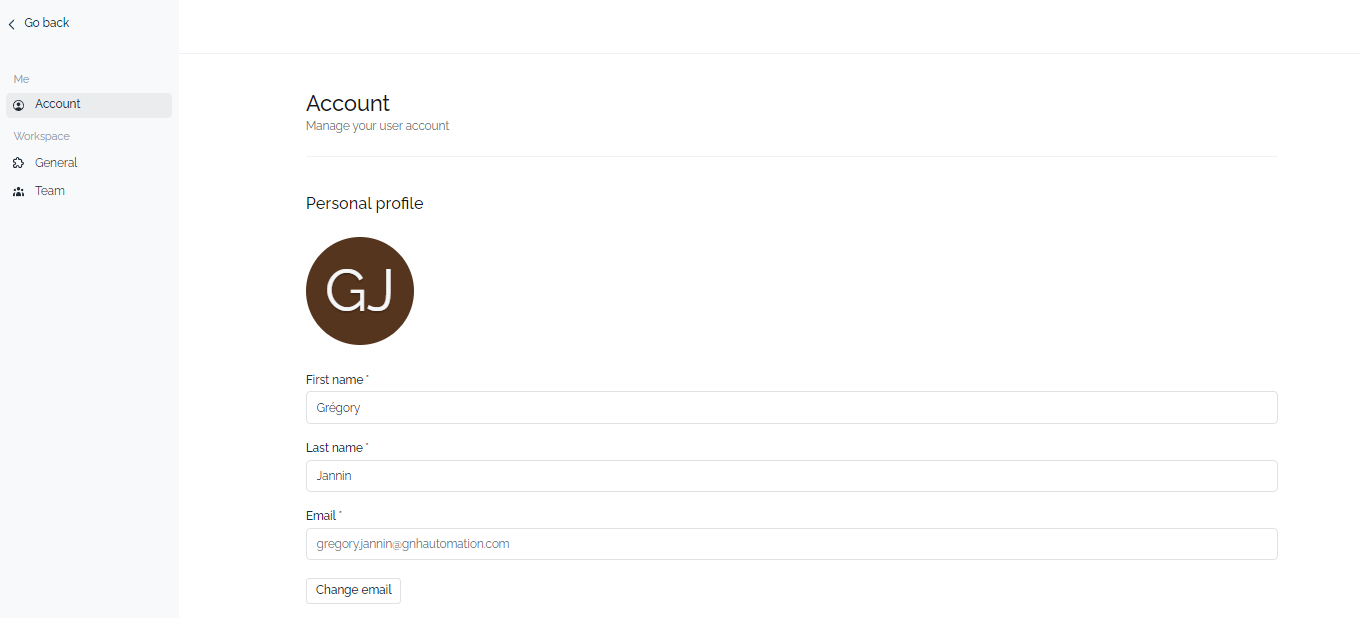
The Personal Profile section is where you can customize and update your personal information. This includes uploading a profile picture, entering your name details such as your first and last name, and updating your email address. You can also change your existing email address in this section.
2. Security
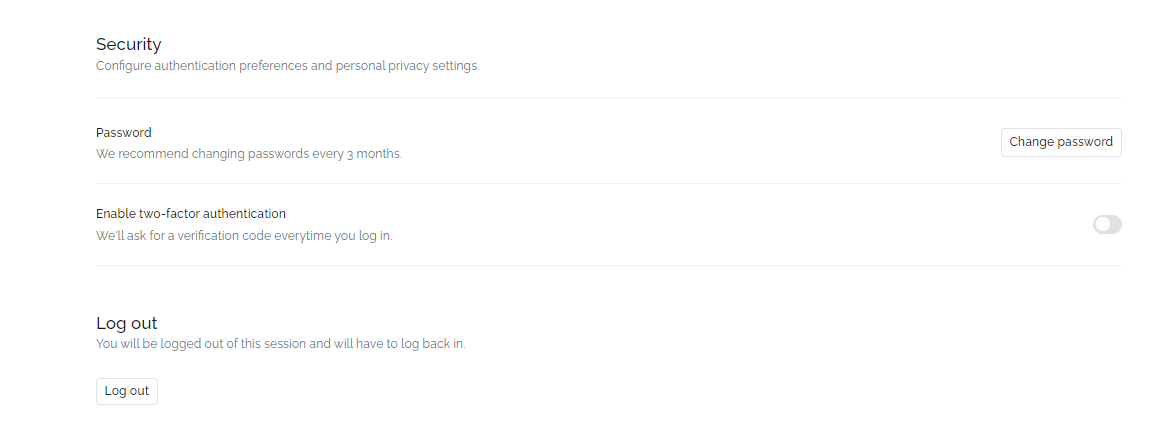
The Security section allows you to configure authentication preferences and personalize your privacy settings. You can choose to enable two-factor authentication, set up a security question, or choose a preferred method of communication for account-related notifications. Additionally, you can control your privacy settings such as changing passwords and enabling a TFA (Two Factor Authentication).
Managing Workspace
Now you can easily manage your workspace in G&H Automation Client Portal such as changing company information, and managing team members. There are two sections of the Workspace: General Settings and Managing Team.
1. General Settings
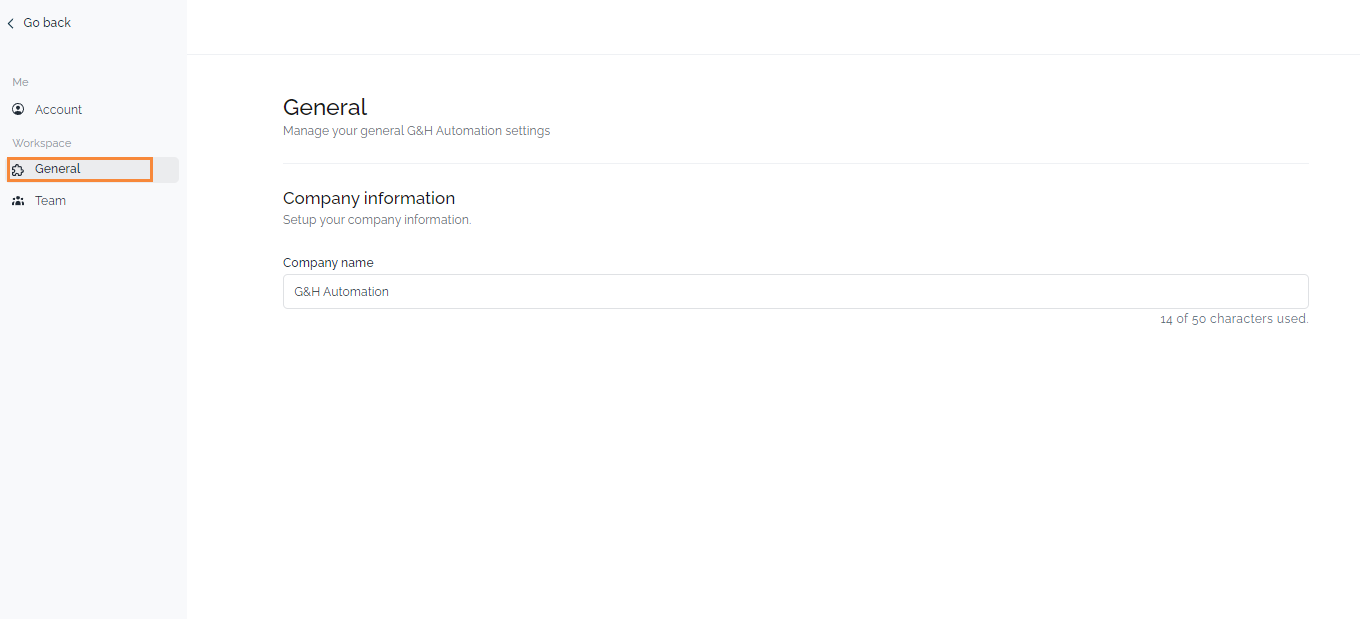
In the Workspace General settings, you can manage your general G&H automation settings such as setting up your company information, making it easier for your team and clients to identify your brand. All you need to go to the General section and add the company name.
2. Managing Team
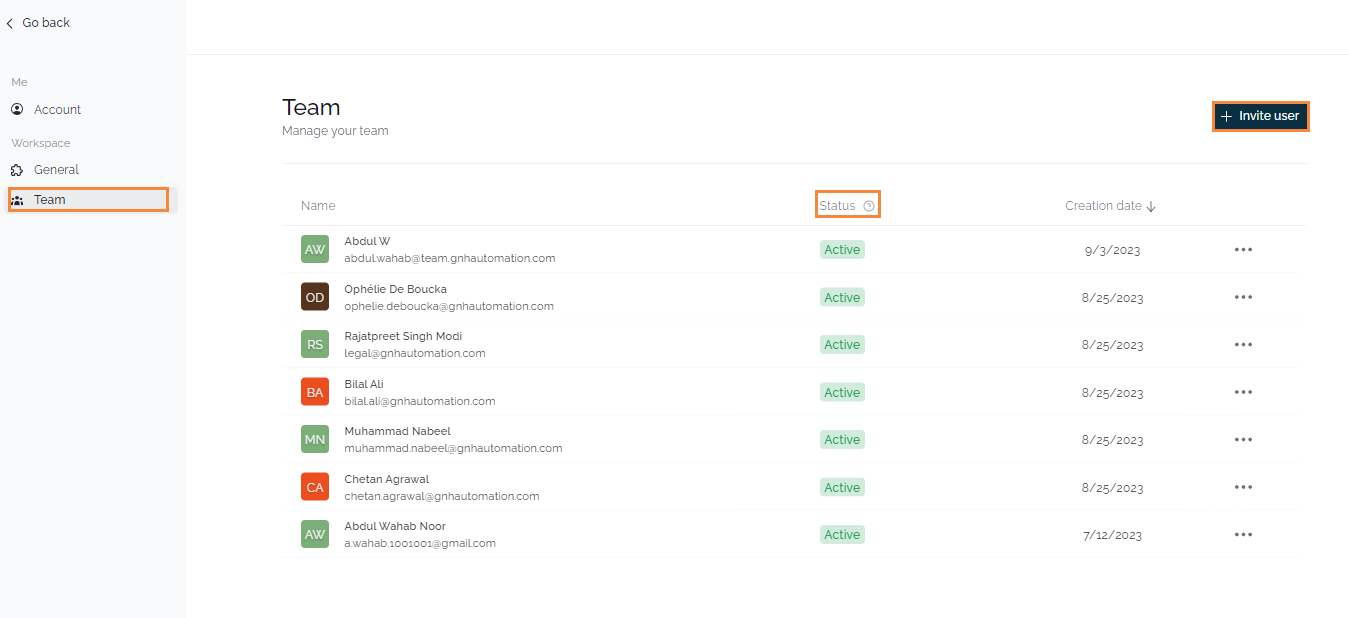
In addition to managing your company information, you can also manage your team members, including adding and removing them from the workspace. You can also view the current status of your team members, whether they are active or offline, giving you a better idea of who is available to work on projects at any given time. By granting access to the client portal, you can keep your clients up-to-date on project progress and provide a seamless collaboration experience.
All you need to go Team section and have a holistic team view.
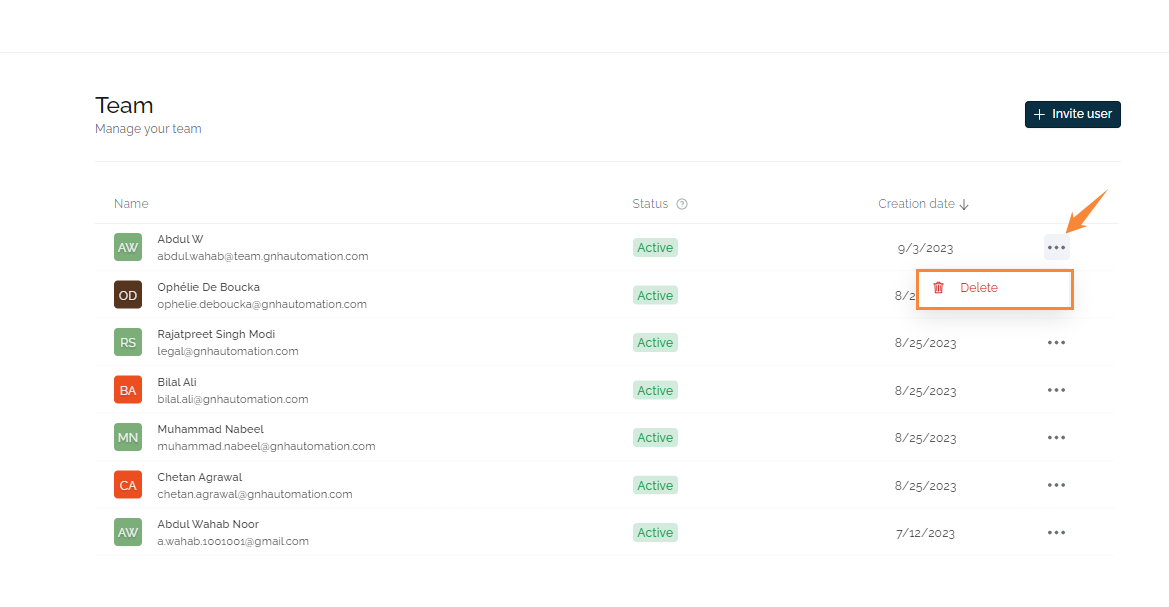
To delete the member, click on the ellipsis (Three dots).
Key Takeaways
- The G&H Automation Client Portal allows you to manage your account settings and workspace preferences.
- You can personalize your profile details, control security settings, and update company information.
- Manage your team by adding/removing members, viewing their status, and controlling their access.
💡Looking for Help?
Do you have further queries or require additional clarification? Feel free to reach out.