
📚 Table of Contents
1. Overview
2. How to Update Subscriptions
3. Account Details
3.1 How to Update Account Details
4. How to Pay Invoices
5. Export Billing Information
5.1 Export Subscription History
5.2 Export Invoices History
6. Key Takeaways
Overview
Managing billing details can be a hassle but with G&H Automation's Client Portal, it is just a matter of a few clicks. In this article, we will guide you on how to stay up-to-date with your billing details and pay your bills conveniently.
The billing section available in our client portal provides you with a comprehensive overview of your subscription history, invoice history, and payment account details that you need to change. You can easily access information regarding the status of your payments, whether they are due, paid, or overpaid. Along with this, you can also view details such as voice number, balance amount, and payment date.
Furthermore, the portal allows you to make changes to your billing information with ease. You can edit and update any information as required, ensuring that your billing details are always up-to-date and accurate. Once you have made the necessary changes, you can save them instantly, and the new information will reflect on your billing history.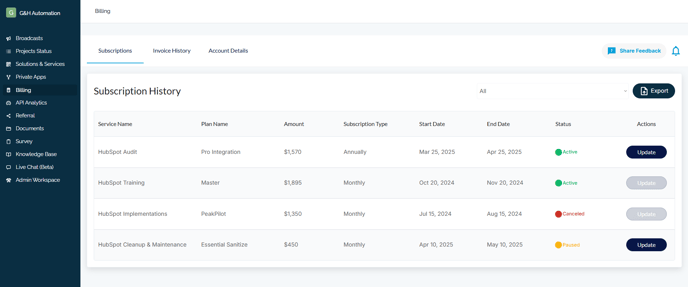
How to Update Subscriptions in the G&H Automation Client Portal
To update your current subscription, follow the steps below:
Step 01:
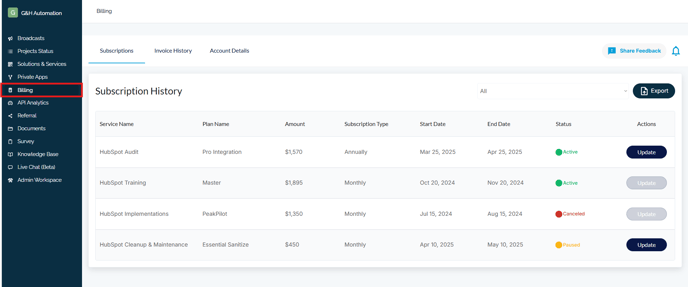
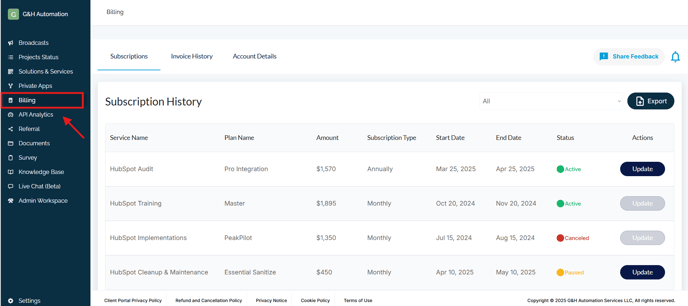
Log into the G&H Client Portal and click "Billing" from the menu.
Step 02:
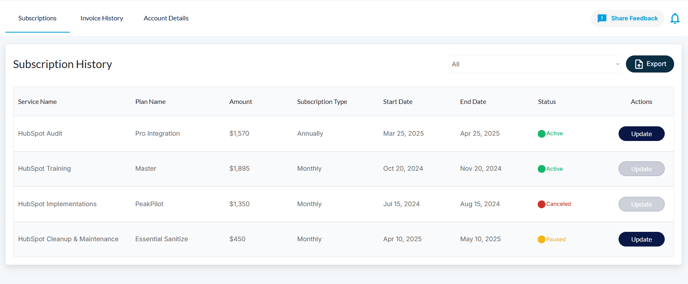
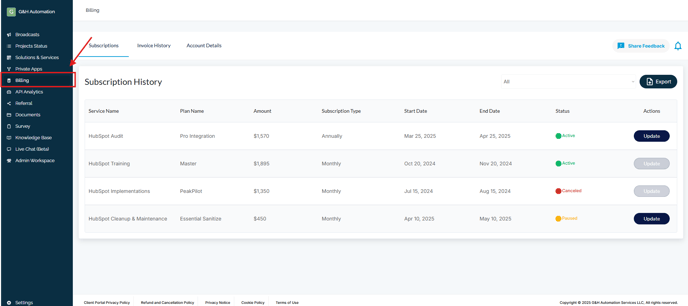
You will see a window "Subscription History", showing your subscription History with service name, amount, status, start and end date.
Step 03:
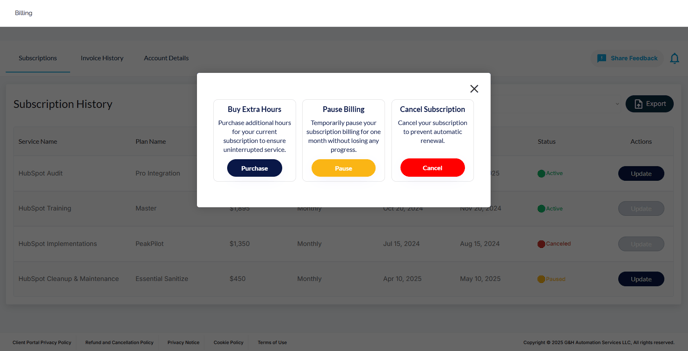
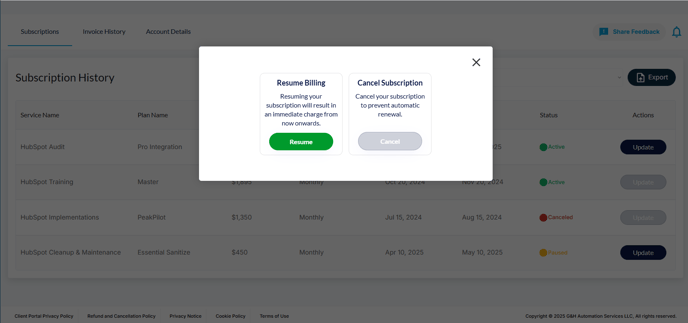
Now click on "Update" against the service name that want to change. Here you can activate the subscription, pause the active subscription, buy some extra hours or cancel the subscription.
You can choose to make changes according to your needs, whether that involves canceling your active subscription or resuming your existing plan.
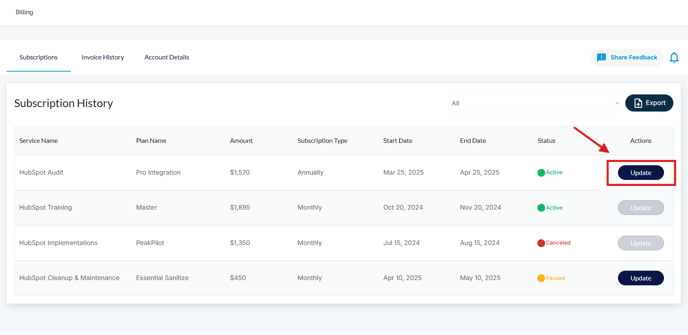
- Buy Extra Hours: Purchase additional hours for your current subscription to ensure uninterrupted service.
- Pause Billing: Temporarily pause your subscription billing for one month without losing any progress.
- Cancel Subscription: Cancel your subscription to prevent automatic renewal.
- Resume Billing: Resuming your subscription will result in an immediate charge from now onwards.
Account Details
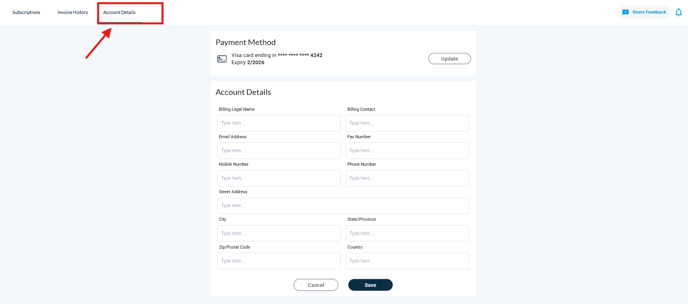
Keeping your billing information up-to-date ensures that you receive accurate and timely billing statements, making it a hassle-free experience. With the client portal, you can easily make changes to your billing information. You can edit and update any information as required, ensuring that your billing details are always up-to-date and accurate. Once you have made the necessary changes, you can save them instantly, and the new information will reflect on your billing history.
How to Update Account Details?
Step 01:
Click on "Billing" from the client portal's menu.
Step 02:
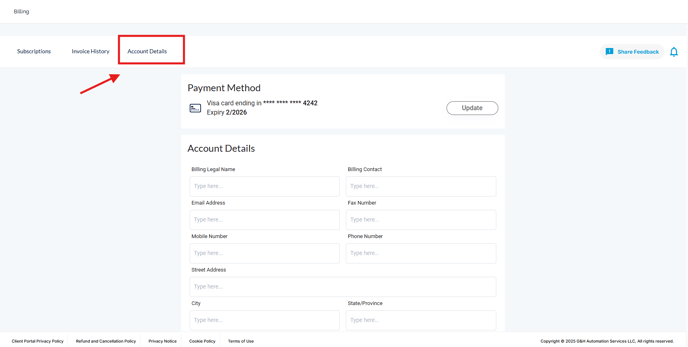
Navigate to "Account details". A billing detail page will open.
Step 03:
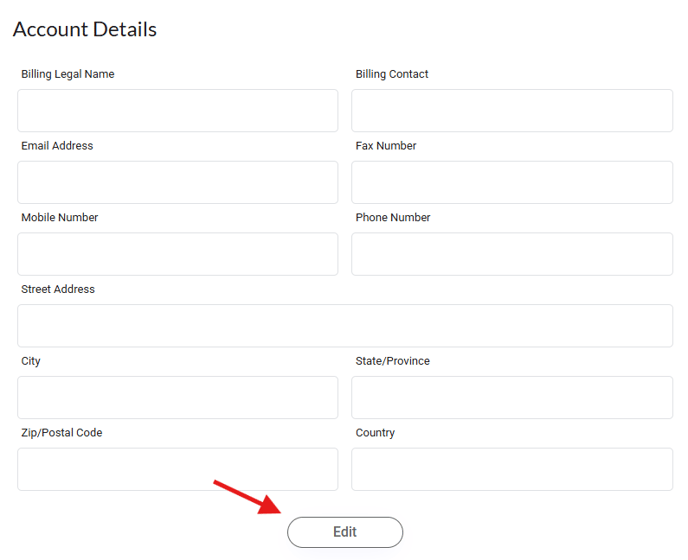
Now, click on the "Edit" button to make changes to account information.
Step 04:
Once you are done with the changes, click on "Save" to update the billing information.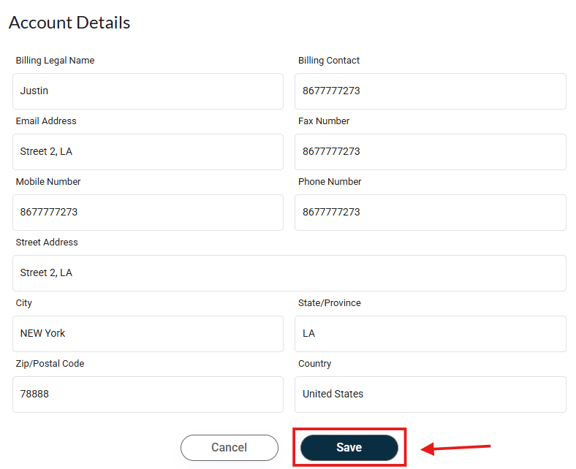
How to Pay Bill's Invoices?
To pay your current or past bills, follow the steps below:
Step 1:
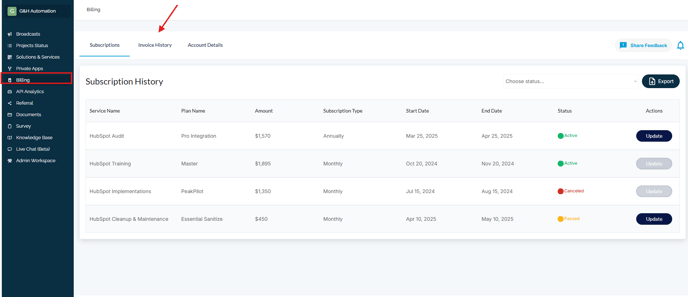
Log in to the G&H Client Portal and click on "Billing" from the menu. After that navigate to "Invoice History"
Step 2:
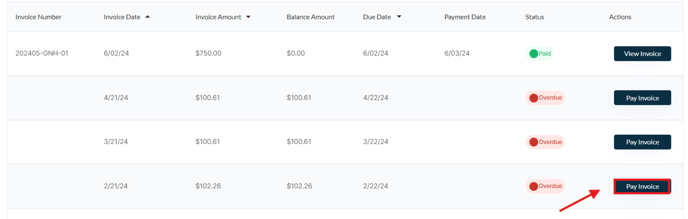
You will see a window screen showing "Invoice History". Now check the payment status which is due along with the due date. Click on the "Pay" button.
Step 3:
Complete the payment checkout. Congratulations! Your bill has been paid.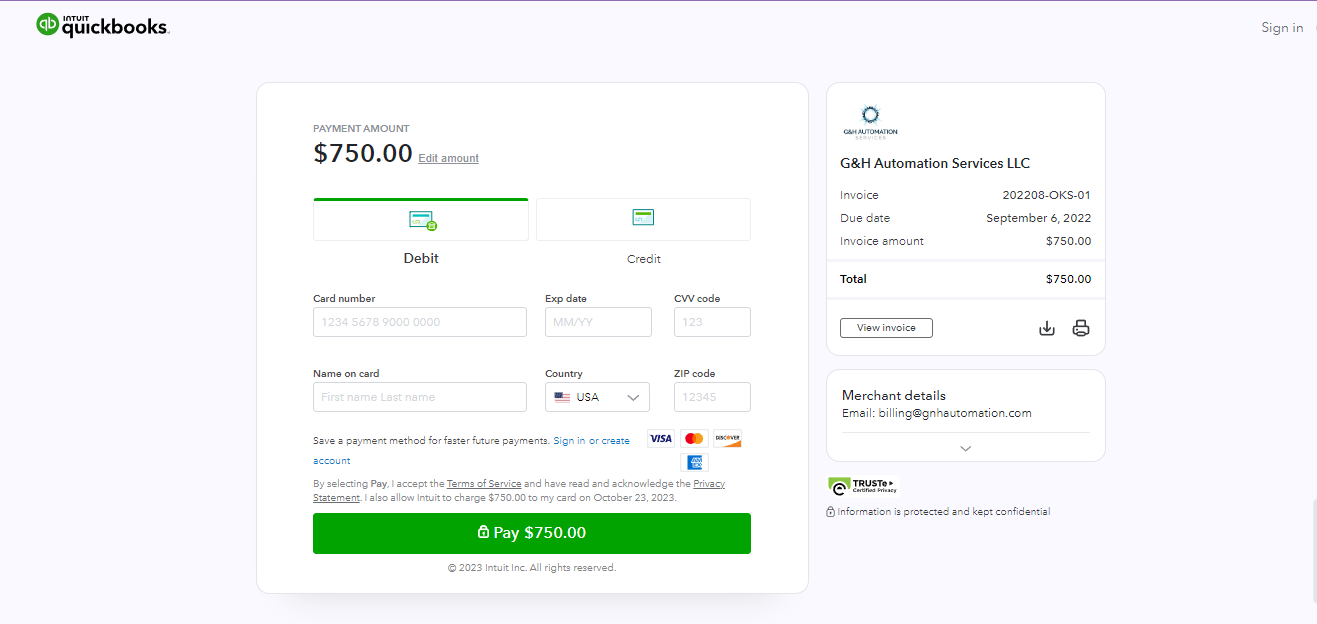
Export Billing Information
The G&H Automation Client Portal provides an effortless way to export subscription and invoice details directly to clients' email addresses. This functionality enhances convenience and efficiency, enabling clients to access and retain their financial records with just a few clicks. By simplifying the export process, clients can effortlessly archive, share, and manage their billing information, saving valuable time and reducing the likelihood of errors.
How to Export Subscription History
Step 01:
Click "Billing" from the menu.
Step 02:
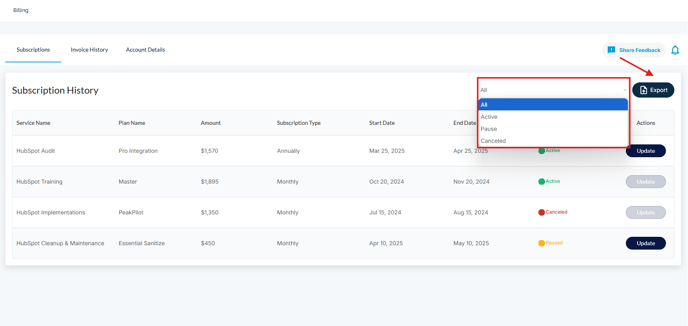
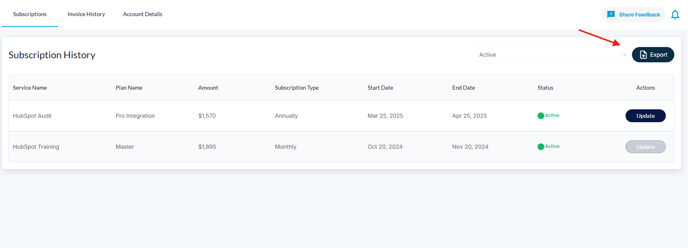
Filter out the Subscription that you want to export e.g. Active, Cancelled, paused, or All.
Step 03:
In this case, we are going with the active ones. A detail page will open with Subscription details that are currently active.
Step 04:
Click on the "Export" button. You will receive Invoice detail export to your email.
How to Export Invoice History
If you want to export, follow the same steps.
Step 01:
Click "Billing" from the menu.
Step 02:
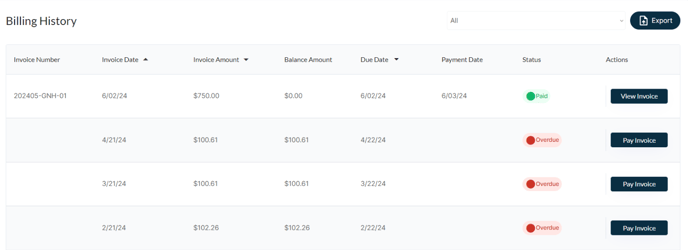
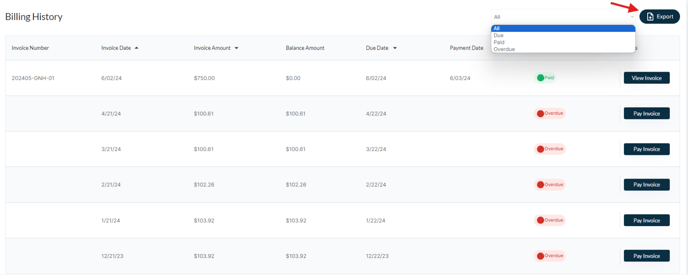
Filter out the bills that you want to export e.g. Paid, Due, Overpaid, or All.
Step 03:
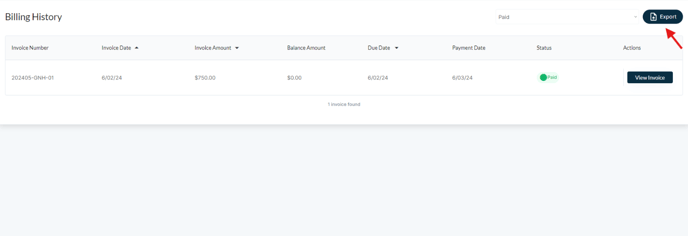
In this case, we are going with the Paid ones. A detail page will open with Bill details that are paid.
Step 04:
Click on the "Export" button. You will receive Invoice detail export to your email.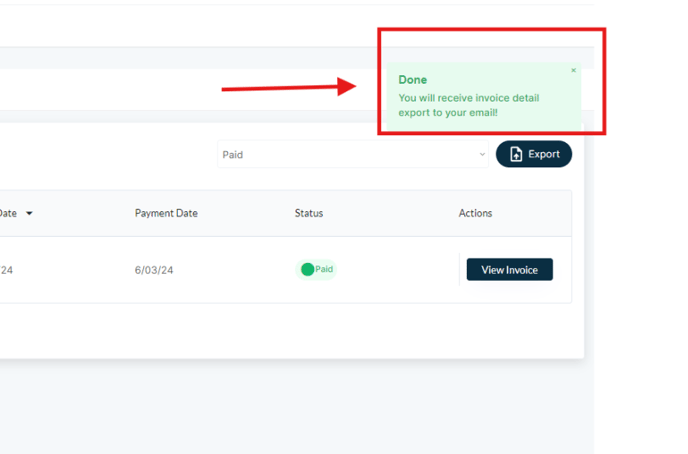
Key Takeaways
- G&H Automation Client Portal allows you to manage your subscription details and pay bills conveniently.
- The billing section provides an overview of your subscription and invoice history, including payment status, invoice number, balance amount, and payment date.
- You can update your billing information and save the changes instantly.
- The Client Portal allows you to export billing information to your email for easy access and record-keeping
💡Looking for Help?
Do you have further queries or require additional clarification? Feel free to reach out.